Hello and welcome to my wiki c:
Here you can find cheat-sheets, cookbooks and small guides that I wrote (mostly) for myself about various topics.
I can’t garantee that you’ll find anything usefull here. I write things that I find useful for myself.
Cool stuff for steam deck
Pages
Config tools
Tools
Games
Trying out
Fixes for weird problems I might need again
Sound crackling and suspending after a short time (when idle)
Note: I don’t know how to fix the crackling when the intel_hda_controller comes online. This is only a mitigation of the issue.
It makes that sound when going idle, because of the power saving feature.
With pacmd list-sinks it’s possible to see:
state: SUSPENDED
suspend cause: IDLE
echo 0 > /sys/module/snd_hda_intel/parameters/power_save will disable
the power saving feature, thus avoiding the crackling/popping every time
the sink comes on/off.
To make it persistent, I create a file in /etc/modprobe.d called audio_pop.conf with the contents options snd_hda_intel power_save=0.
Weird occasional latency problems with Bluetooth devices
This seems to be an issue with the power manager. I fixed it by putting the following on a bluetooth_latency_fix.conf in /etc/modprobe.d (and restarting):
options usbcore autosuspend=-1
options btusb enable_autosuspend=0
Application not recognizing the display environment
Edit /etc/pam.d/system-login as sudo and append type=x11:
-session optional pam_systemd.so
becomes
-session optional pam_systemd.so type=x11
Mouse wouldn’t move camera in Dark Souls II (wine/proton)
When running Dark Souls II in proton, the mouse would be recognised and work on the menus, but I wasn’t able to move the camera with it (the arrow keys moved the camera and the left and right mouse buttons performed attacks).
To fix it, I ran the following command inside the profile’s pfx directory:
printf "REGEDIT4\n[HKEY_CURRENT_USER\Software\Wine\\\Explorer]\n\"Desktop\"=\"Default\"\n[HKEY_CURRENT_USER\Software\Wine\\\Explorer\Desktops]\n\"Default\"=\"1920x1080\"\n[HKEY_CURRENT_USER\Software\Wine\\X11 Driver]\n\"GrabFullscreen\"=\"N\"" >> temp.reg && find -name "pfx" | xargs readlink -f | xargs -I{} env WINEPREFIX={} regedit temp.reg && rm temp.reg
Tor service failing to initialize
I don’t know which update made this starting to happen, but the Tor hidden service
configuration on my server’s website started requiring a new option (on Arch).
It was now necessary to set User tor on /etc/tor/torrc. This user can probably
change between distributions/install processes/use cases.
GRUB menu not showing after fresh installing
In the case of some motherboard manufacters/models (in my case MSI), the UEFI firmware requires the bootable file at a known location before they will show UEFI NVRAM boot entries. There are 2 solutions at the time of writing:
The first solution is to install GRUB at the default/fallback boot path:
grub-install --target=x86_64-efi --efi-directory=esp --removable
Alternatively, you can move an already installed GRUB EFI executable to the default/fallback path:
mv esp/EFI/grub esp/EFI/BOOT
and then
mv esp/EFI/BOOT/grubx64.efi esp/EFI/BOOT/BOOTX64.EFI
Recipes
Pizza
Ingredientes
Massa
- Massa de pizza do Continente
- Azeite
- Açúcar
- Sal
- Água morninha (não muito)
Molho
- Tomate em lata
- Sal
- Azeite
- Manjericão
- Orégãos
- Alho
Toppings
- Queijo Ralado
- Fiambre aos cubos
- Cogumelos
- Milho
- Pepperoni
Steps
- Preparar massa
- Misturar todos os ingredientes e amassar
- Deixar repousar uns minutos
- Estender com o rolo
- Preparar molho
- Deitar azeite num pequeno tacho
- Picar alho e refugar
- Deitar tomate e o resto dos ingredientes
- Deixar cozer uns minutos
- Passar varinha mágicas
- Preparar a pizza
- Pré-aquecer o forno
- Espalhar molho na massa
- Deitar o Queijo
- Deitar os toppings à escolha
- Levar ao forno
Pão de Ló de Ovar
Ingredientes
- 2 ovos inteiros
- 11 gemas de ovo
- 80g de farinha de trigo com fermento
- 1 colher de chá de sal
- 200g de açúcar
Processo
- Colocar os ovos, o açúcar e o sal num recipiente
- Bater (fast)
- Colocar a farinha lentamente e envolver (não é bater) (não esquecer de peneirar)
- Forrar a forma com margarina e papel vegetal (margarina dos 2 lados do papel)
- Forno 180 graus entre 15 a 20 mins
Torta de Cenoura
Ingredientes
- 600g de Cenouras
500g300g de Açúcar- 4 ovos
- 5 colheres de sopa de Farinha
- 2 Laranjas (casca de 2; sumo de uma)
- 1 colher de café de Fermento
- Sal a gosto
Steps
- Pré-aquecer o forno
180º. Correção: 120° porque se não queima - Fazer puré de cenoura:
- Cozer cenouras + casca das laranjas + sal
- Passar varinha mágica quando estiver cozido
- Separar claras das gemas
- Bater puré com açúcar e gemas 1 a 1
- Juntar sumo de laranja
- Juntar e bater a farinha e fermento
- Bater as claras em castelo firme
- Envolver claras no preparado
- Forrar tabuleiro com papel vegetal untado com margarina
- Levar preparado ao forno durante 20 min (Reduzir temperatura)
- Estender pano na mesa
- Pousar bolo ao contrário sobre o pano (com o papel vegetal para cima)
- Descolar papel vegetal do bolo
- Enrolar torta com o pano
- Cortar as pontas para parecer mais bonito
- 500ml leite de vaca
- 500ml leite de vaca
- 20g maizena
- 70g acucar amarelo
- 4 gemas
- casca de limao
- pau de canela
- acucar branco para caramelizar
- Aromatizar o leite
- Leite no fogão no minimo
- juntar pau de canela e casva de limão
- Deixar até se sentir o cheiro no ar
- Não deixar ferver
- Bater gemas com a maizena
- Virar o leite aos poucos nas gemas
- mexendo sempre
- devagar para não cozer as gemas
- usar peneira para apanhar a canela e as cascas
- voltar a por tudo na panela
- ligar no minimo e ir mexendo sempre até atingir a espessura desejada
- se demorar aumentar o lume
- passar para taças
- esperar q arrefeça oara ganhar uma camada rija por cima
- deitar acucar branco e caramelizar com o maçarico
Omolete de Atum
Ingredientes
- Ovos
- Atum
- Pimentos (várias variedades)
- Cebola
- Alho
- Cenoura
- Sal
- Picante
Steps
- Deitar azeite em frigideira
- Deitar alho, cebola, cenoura, pimentos
- Deixar fritar
- Numa malga mexer os ovos
- Misturar Atum, Sal e Picante na malga
- Deitar mistura na frigideira e tapar com testo
- Virar omolete
Kebab
Pita Bread
- 375 g all-purpose flour, 2,5 cups + 2 tablespoons
- 1 cup, 250 ml water, lukewarm
- 10 g instant yeast, 1 sachet
- 1 heaped teaspoon salt
- 1 pinch of sugar
- 1 tablespoon olive oil
- In a bowl or a glass mix the water, yeast and sugar and let it sit for a couple of minutes until dissolved.
- Meanwhile, combine the flour and salt in a large bowl and add the yeast water mix and olive oil.
- Knead the dough for about 6-7 minutes until it is smooth and elastic.
- Rub the dough and the bowl with oil and cover with a damp kitchen cloth. Let the dough rise for 30-40 minutes at room temperature or until doubled in size.
- After rising, dust your work surface with flour and transfer the dough on your counter and divide into 10 equal balls (65g each).
- First cover with a dry then damp cloth to prevent drying. Leave them for 30 minutes to rest
- Using a floured rolling pin, roll one of the pieces into an ellipsis that’s 20-22 cm (7-8 inches) wide and about a quarter of an inch thick. Then let it sit for 3-4 minutes, for it to rise well while cooking.
- Heat a cast iron pan and lay the rolled-out pitas directly on the hot pan. Instead of cast iron, you can use the back of an oven tray as well.
- Cook the breads until they become partially brown for about 1,5 minutes on low heat. Then flip the pita over to cook for another 1,5 minutes on the other side. The pita is ready when it puffs up forming a pocket.
- Remove from the pan and cover the pitas with a clean towel while you work on the rest of the pitas to keep them warm and soft.
Turkish DÖNER KEBAB
- 1/2 kg ground beef (rib)
- 2 tablespoons yoghurt
- 2 tablespoons milk
- 1 large onion, pureed
- 10-12 springs fresh thyme, leaves picked
- 1/2 tablespoon red pepper flakes
- 1/2 tablespoon salt
- A pinch of black pepper
- 1-2 tablespoons butter
- To make the döner, mix all of the ingredients, except onion, in a bowl.
- Sieve the onion juice on the mixture and knead until the mixture is homogenous.
- Rest the mixture in the fridge for a day.
- Wrap the mixture in a baking paper and squeeze from both ends to give it a log shape. Transfer to your freezer and let it freeze (You can keep it in the freezer for up to 6 months and use whenever you want.).
- When it is time to cook, take out the frozen döner let it sit for 5 minutes.
- Carefully, cut thin slices (as thin as you can). Don’t try to slice all the mixture at once, work in batches. You can prepare each portion at a time so you can cook the slices before they are thawed (you can deepfreeze the rest of the döner again for later. Don’t place it in the freezer if it is thawed).
- Heat a large frying pan on medium heat and melt 1/2 tablespoon of butter.
- Place the doner slices on the hot pan and cook both sides until they are browned. Don’t try to flip before one side is cooked.
- Cook rest of the slices with the rest of the butter.
Massa com Atum
Ingredients
- Esparguete
- Sal
- Ovo
- Lata de atum
- Cebola
- Maionese
- Pimenta
- Malagueta/Piri-piri
Steps
- Cook pasta
- Cook egg
- Mix tuna with the rest of the ingredients
Aletria
Ingredientes
- Água
- Açúcar
- Casca de limão
- Pau de canela
- (Optional) canela em pó
- 5 “ninhos” de aletria
Procedimento
- Encher meio fervedor de água
- Pòr uma raspa de casca de limão e um pau de canela
- Ferver a água
- Ir colocando açúcar até ficar doce o suficiente
- Quando tiver a ferver, colocar a aletria (ferver fechado para não secar)
- Deixar cozinhar a aletria (pode ser preciso adicionar água, dunno)
- Done
Crepes Recipe
Ingredientes
- 1 cup (125g) All-purpose flour
- 1/4 teaspoon Salt
- 2 Eggs
- 1 tablespoon Sugar
- 1¼ cups (300ml) Milk
- 2 tablespoon (30g) Butter
- Oil for cooking
- 1 teaspoon Vanilla extract (optional)
For serving (optional):
- Nutella
- Cream cheese
- Banana
- Strawberries
Steps
- In a large bowl sift flour, add salt, sugar and stir.
- In a separate bowl whisk eggs, vanilla extract and milk, until combined.
- Gradually add the milk mixture into flour mixture and stir until incorporated and smooth. Pour in melted butter and whisk until combined. Let stand at room temperature for 15-30 minutes (or in the fridge).
- Heat a small non-stick pan over medium heat. Add butter or oil to coat.
- Pour about 1/-3-1/4 cup of the crepe batter, swirling it to evenly coat. Cook for 1-2 minutes, flip and cook for 30 seconds. Remove from the pan and repeat with the remaining batter. Remember to grease the pan between ease crepe.
- Serving suggestion: spread 1-2 tablespoons of Nutella, top with banana slices, fold and serve.
- Serving suggestion 2: spread 1-2 tablespoons cream cheese/sour cream, top with strawberries, fold and serve.
Video Recipe
Fudgy Brownies
Ingredients
- 3/4 cup (12 Tbsp; 175g) unsalted butter
- one 4 ounce (113g) semi-sweet chocolate bar, coarsely chopped*
- 2 cups (400g) granulated sugar*
- 3 large eggs, at room temperature
- 2 teaspoons pure vanilla extract
- 1 cup (82g) unsweetened natural or dutch-process cocoa powder*
- 1 cup (125g) all-purpose flour (spoon & leveled)
- 1 teaspoon salt
- optional: 1 and 1/4 cups (225g) semi-sweet chocolate chips
Steps
- Preheat the oven to 350°F (177°C) and grease a 9×13 inch pan or line with aluminum foil or parchment paper, leaving an overhang on the sides to lift the finished brownies out (makes cutting easier!). Set aside.
- In a microwave-safe bowl, combine the butter and 2 ounces of chopped chocolate. Melt in 30 second increments, whisking after each, until completely smooth. Whisk in the sugar until completely combined, then whisk in the eggs and vanilla. The batter will be light brown and a little dull looking.
- Add the cocoa powder, flour, salt, remaining 2 ounces of chopped chocolate and the chocolate chips. Fold it all together with a rubber spatula or wooden spoon. Batter will be very thick. Spread evenly into prepared pan.
- Bake for 30 minutes, then test the brownies with a toothpick. Insert it into the center of the pan. If it comes out with wet batter, the brownies are not done. If there are only a few moist crumbs, the brownies are done. Keep checking every 2 minutes until you have moist crumbs. My brownies take 31-32 minutes.
- Remove from the oven and place on a wire rack to cool completely in the pan before cutting into squares.
- Cover and store leftover brownies at room temperature for up to 1 week.
How to Tell When Brownies are Done Baking
This can be tricky, so here’s how to determine when these brownies are done. Turn the timer to 30 minutes as soon as the brownies go into the oven. Once you begin to smell that captivating scent of chocolate permeate through the kitchen, check the brownies. Even if this is at the 25 minute mark. Use a toothpick, stick it into the center, and pull it out. The brownies need more time if there is wet batter on the toothpick. If there are a few moist crumbs on the toothpick, the brownies are done. You don’t want a clean toothpick! (That’s an odd sentence, but you get me!)
Video
Programming
Mockito Verify
Verify simple invocation on mock
List<String> mockedList = mock(MyList.class);
mockedList.size();
verify(mockedList).size();
Verify number of interactions with mock
List<String> mockedList = mock(MyList.class);
mockedList.size();
verify(mockedList, times(1)).size();
Verify no interaction with the whole mock occurred
List<String> mockedList = mock(MyList.class);
verifyZeroInteractions(mockedList);
Verify no interaction with a specific method occurred
List<String> mockedList = mock(MyList.class);
verify(mockedList, times(0)).size();
Verify there are no unexpected interactions – this should fail:
List<String> mockedList = mock(MyList.class);
mockedList.size();
mockedList.clear();
verify(mockedList).size();
verifyNoMoreInteractions(mockedList);
Verify order of interactions
List<String> mockedList = mock(MyList.class);
mockedList.size();
mockedList.add("a parameter");
mockedList.clear();

InOrder inOrder = Mockito.inOrder(mockedList);
inOrder.verify(mockedList).size();
inOrder.verify(mockedList).add("a parameter");
inOrder.verify(mockedList).clear();
Verify an interaction has not occurred
List<String> mockedList = mock(MyList.class);
mockedList.size();
verify(mockedList, never()).clear();
Verify an interaction has occurred at least certain number of times
List<String> mockedList = mock(MyList.class);
mockedList.clear();
mockedList.clear();
mockedList.clear();

verify(mockedList, atLeast(1)).clear();
verify(mockedList, atMost(10)).clear();
Verify interaction with exact argument
List<String> mockedList = mock(MyList.class);
mockedList.add("test");
verify(mockedList).add("test");
Verify interaction with flexible/any argument
List<String> mockedList = mock(MyList.class);
mockedList.add("test");
verify(mockedList).add(anyString());
Verify interaction using argument capture
List<String> mockedList = mock(MyList.class);
mockedList.addAll(Lists.<String> newArrayList("someElement"));
ArgumentCaptor<List> argumentCaptor = ArgumentCaptor.forClass(List.class);
verify(mockedList).addAll(argumentCaptor.capture());
List<String> capturedArgument = argumentCaptor.<List<String>> getValue();
assertThat(capturedArgument, hasItem("someElement"));
Logging tips
Log after (and maybe before)
// don't do that
log.info("Making request to REST API")
restClient.makeRequest()

// do that
// log.info("Making request to REST API")  // can include this
restClient.makeRequest()
log.info("Made request to REST API -> OK")
Separate parameters and messages
// don't do that
restClient.makeRequest()
log.info("Made request to {} on REST API.", url)

// do that
restClient.makeRequest()
log.info("Made request to REST API. [url={}]", url)
Distinguish between WARNING and ERROR
try {
    restClient.makeRequest()
    log.info("Made request to REST API. [url={}]", url)
} catch(e: UnauthorizedException) {
    log.warn("Request to REST API was rejected because user is unauthorized. [url={}, result={}]", url, result)
} catch(e: Exception) {
    log.error("Request to REST API failed. [url={}, exception={}]", url, exception)
}
Don’t keep unneeded private user info in logs
Don’t need the names/emails in the logs.
DEBUG | Saved user to newsletter list. [user="Thomas", email="thomas@tuhrig.de"]
DEBUG | Send welcome mail. [user="Thomas", email="thomas@tuhrig.de"]
INFO  | User registered for newsletter. [user="Thomas", email="thomas@tuhrig.de"]
DEBUG | Started cron job to send newsletter of the day. [subscribers=24332]
INFO  | Newsletter send to user. [user="Thomas"]
INFO  | User unsubscribed from newsletter. [user="Thomas", email="thomas@tuhrig.de"]
Computers
USB Cheat Sheet
Sources: https://fabiensanglard.net/usbcheat/index.html
| Marketing Name | Also Known As | Signal Gbps | Signal MiB/s | Wires | Cable |
|---|---|---|---|---|---|
| USB 1.1 | Full Speed | 12 Mbps | 1.5 MiB/s | 4 | 4m |
| USB 2.0 | Hi-Speed | 480 Mbps | 60 MiB/s | 4 | 4m |
| SuperSpeed USB 5Gbps | USB 3.0 USB 3.1 USB 3.2 USB 3.1 Gen 1 USB 3.2 Gen 1 | 5000 Mbps | 625 MiB/s | 8 | 3m |
| SuperSpeedPlus USB 10Gbps | USB 3.1 USB 3.2 USB 3.1 Gen 2 USB 3.2 Gen 2 | 10000 Mbps | 1250 MiB/s | 8 | 2m |
| SuperSpeedPlus USB 20Gbps | USB 3.2 USB 3.2 Gen 2x2 | 20000 Mbps | 2500 MiB/s | 12 | 1m |
| USB4 20Gbps | USB4 Gen 2×2 USB4 | 20000 Mbps | 2500 MiB/s | 12 | 0.8m |
| USB4 40Gbps | USB4 Gen 3×2 USB4 | 40000 Mbps | 5000 MiB/s | 12 | 0.8m |
Gen naming Convention, lanes, and Speed:
USB Gen A x B
A = Generation
B = Num lanes used
| Name | Signal | Sig Totala | Encoding | Effective bb | Effective Bb | Real Lifec |
|---|---|---|---|---|---|---|
| USB 3.2 Gen 1x1 | 5,000 Mbps | 5,000 Mbps | 8b/10b | 4,000 Mbps | 500 MiB/s | 400 MiB/s[1] |
| USB 3.2 Gen 1x2 | 5,000 Mbps | 10,000 Mbps | 8b/10b | 8,000 Mbps | 1,000 MiB/s | 800 MiB/s |
| USB 3.2 Gen 2x1 | 10,000 Mbps | 10,000 Mbps | 128b/132b | 9,696 Mbps | 1,212 MiB/s | 780 MiB/s[2] |
| USB 3.2 Gen 2x2 | 10,000 Mbps | 20,000 Mbps | 128b/132b | 19,392 Mbps | 2,424 MiB/s | 1,600 MiB/s[4] |
| USB 4 Gen 2x2 | 10,000 Mbps | 20,000 Mbps | 128b/132b | 19,392 Mbps | 2,424 MiB/s | 1,600 MiB/s |
| USB 4 Gen 3x2 | 20,000 Mbps | 40,000 Mbps | 128b/132b | 38,787 Mbps | 4,848 MiB/s | 2,700 MiB/s[5] |
Note: Multi-lanes systems, uses lane striping (on TX) and lane bonding (on RX).
a - What they put on the box.
b - Rate with encoding overhead. e.g, 8b/10b = 20%.
c - Real life sequencial read rate.
Cables
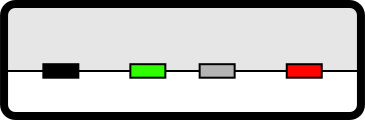
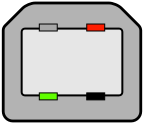
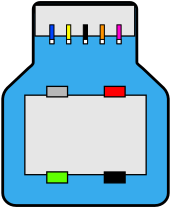
4 wires: PWR, GND, D+, D-.
8 wires: PWR, GND, D+, D-. RX+ , RX- , TX- , TX+.
12 wires: PWR, GND, D+, D-, RX1+, RX1-, RX2-, RX2+, TX1+, TX1-, TX2-, TX2+.
Note: 1 USB lane = 1 twisted wire pair +/-.
Note: 4 wires = 1 half-duplex lane, 8 wires = 2 lanes (one up, one down), and 12 wires = 4 lanes (two up, two down).
USB-A/B: Connectors 4/8 wires
| Type-A 4-wires | Type-A 8-wires | Type-B 4-wires | Type-B 8-wires |
|---|---|---|---|
 |  |  |  |
USB-C: Connectors 12 wires
Only the USB Type-C connector has enough pins to support two lanes.
 - CC1 and CC2 are downstream facing port (DFP) and upstream facing port (UFP) detection. Also used for power negotiation and alt mode switch.
- SBU1 and SBU2 are secondary bus wires, for the DisplayPort AUX channel and hot plug detection (HPD).
Charge rates / Cable types
| Specifications | Max. Voltage | Max. Current | Max. Power |
|---|---|---|---|
| USB 2.0 | 5V | 500mA | 2.5W |
| USB 3.0 / USB3.1 | 5V | 900mA | 4.5W |
| USB Battery Charging (BC) 1.2 | 5V | 1.5A | 7.5W |
| USB-C Current Mode (non-PD) | 5V | 3A | 15W |
| USB-C / Power Delivery (PD 1/2) | 20V | 5A | 100W |
| USB-C PD 3.1 (EPR) | 48V | 5A | 240W |
Specifications
USB 1.0 (Jan, 1996).
USB 1.1 (Sep, 1998).
USB 2.0 (Apr, 2000).
USB 3.0 (Nov, 2008).
USB 3.1 (Jul, 2013).
USB 3.2 (Sep, 2017).
USB 4.0 (Aug, 2019).
References
Linux
Shell Parameter Expansion
https://www.gnu.org/software/bash/manual/html_node/Shell-Parameter-Expansion.html
$
If parameter is unset or null, the expansion of word is substituted.\ Otherwise, the value of parameter is substituted.
$
If parameter is unset or null, the expansion of word is assigned to parameter. The value of parameter is then substituted. Positional parameters and special parameters may not be assigned to in this way.
$
If parameter is null or unset, the expansion of word (or a message to that effect if word is not present) is written to the standard error and the shell, if it is not interactive, exits. Otherwise, the value of parameter is substituted.
$
If parameter is null or unset, nothing is substituted, otherwise the expansion of word is substituted.
${parameter:offset} and $
$ a="12345"
$ echo ${a:1:2}
23
$ echo ${a:1:-1}
234
${parameter#word} and $
#deletes the shortest match.##deletes the longest match.
$ a="1231245"
$ echo ${a#*1}
231245
$ echo ${a##*1}
245
${parameter%word} and $
Same as above but matches from end (trailling).
$
Substitutes first pattern match with string.
${parameter^pattern} and ${parameter^^pattern} and ${parameter,pattern} and $
- ^ makes upper-case.
- , makes lower-case.
Makes all matched characters in pattern upper/lower-case. Pattern should now atempt to match more than 1 character.
Local DNS for local services
Imagine you are hosting something like ollama in your computer. It’s better to access ollama.localhost then localhost:11434. This also applies to other apps.
The trick
In Linux (at least when using systemd-resolved) .localhost domains always resolve to localhost (127.0.0.1). This makes it trivial to reverse proxy traffic to the apps we need.
The tool
Caddy to the rescue. We can use Caddy to issue self signed certs and reverse proxy the requests to the various apps.
This example makes it so ollama.localhost proxies the locally running ollama instance.
ollama.localhost {
    reverse_proxy localhost:11434
    tls internal
    encode gzip zstd
}
Using tailscale in LXC containers
The contents of the this page serve mostly as a note-to-self for the future and are sourced from tailscale’s documentation.
What
I have a few LXC containers on proxmox where I want to run tailscale. After installing tailscale, doing tailscale up throws an error telling me to do sudo systemctl start tailscaled.
Why
By default, when you create an LXC contained in proxmox it lacks the privileges to access the networking resource needed for tailscale to work.
How
To fix this, we need to give the container the privileges it requires. Example with a container with ID 104:
- Start a shell on the Proxmox host
- Open the
/etc/pve/lxc/104.conffile with whatever text editor - Add the following two lines at the end and save the file:
lxc.cgroup2.devices.allow: c 10:200 rwm
lxc.mount.entry: /dev/net/tun dev/net/tun none bind,create=file
Install Arch Linux guide
This guide focus on stuff that I find essential to do when installing Arch, and following official Arch Linux installation guide.
Install
Set the console keyboard layout
Temporarily set the keyboard layout:
loadkeys pt-latin1
Update system clock
timedatectl set-ntp true
Partition disk
I like having swap and a separate partition for home (on a separate device).
| Mount point | Partition type | Suggested size |
|---|---|---|
| /boot | EFI system partition | At least 1 GiB |
| [SWAP] | Linux swap | see below |
| / | Ext4 | Remainder of the device |
| /home | Ext4 | Another full device |
Swap size recommendation (by RedHat)
| Amount of RAM in the system | Recommended swap space | Recommended swap space if allowing for hibernation |
|---|---|---|
| <= 2 GB | 2 times the amount of RAM | 3 times the amount of RAM |
| > 2 GB – 8 GB | Equal to the amount of RAM | 2 times the amount of RAM |
| > 8 GB – 64 GB | At least 4 GB | 1.5 times the amount of RAM |
| > 64 GB | At least 4 GB | Hibernation not recommended |
Extra considerations
- Choose the best SSD block size for your drives (if applicable)
- The default is often not the best
- Check that your partitions are correctly aligned
curl -s https://raw.githubusercontent.com/crysman/check-partitions-alignment/master/checkpartitionsalignment.sh -o checkpartitionsalignment.sh
Format the partitions
mkfs.fat -F 32 /dev/efi_system_partition
mkswap /dev/swap_partition
mkfs.ext4 /dev/root_partition
mkfs.ext4 /dev/home_partition
Mount the file systems
mount /dev/root_partition /mnt
mount --mkdir /dev/efi_system_partition /mnt/boot
mount --mkdir /dev/home_partition /mnt/home
swapon /dev/swap_partition
Install essential packages
These are just the basics, so we can continue working.
pacman -Syu archlinx-keyring
pacstrap /mnt base base-devel linux linux-firmware linux-zen linux-zen-headers neovim networkmanager
Fstab
I prefer to use the UUIDs (-U), but you can use labels instead (-L).
genfstab -U /mnt >> /mnt/etc/fstab
Chroot
Change root into the new system:
arch-chroot /mnt
Time zone
Set the time zone:
ln -sf /usr/share/zoneinfo/Region/City /etc/localtime
hwclock --systohc
hwclock generates /etc/adjtime. This assumes the hardware clock is set to UTC.
Localization
Edit /etc/locale.gen and uncomment the needed locales (e.g.: en_US.UTF-8).
locale-gen
Create /etc/locale.conf and set the LANG and LC_* variables accordingly (never set LC_ALL because it overrides everything else):
nvim /etc/locale.conf
# ---
LANG=en_US.UTF-8
LC_CTYPE=en_US.UTF-8
LC_NUMERIC=en_US.UTF-8
LC_TIME=pt_PT.UTF-8
LC_COLLATE=C
LC_MONETARY=pt_PT.UTF-8
LC_MESSAGES=en_US.UTF-8
LC_PAPER=en_US.UTF-8
LC_NAME=en_US.UTF-8
LC_ADDRESS=en_US.UTF-8
LC_TELEPHONE=en_US.UTF-8
LC_MEASUREMENT=en_US.UTF-8
LC_IDENTIFICATION=en_US.UTF-8
# ---
Set the console keyboard layout, and make it persistent in /etc/vconsole.conf:
nvim /etc/vconsole.conf
# ---
KEYMAP=pt-latin1
# ---
Network configuration
Set your hostname in /etc/hostname, e.g., ifgsv.
nvim /etc/hostname
# ---
myhostname
# ---
Set your hosts in /etc/hosts (don’t forget to set your hostname in the fields below):
# Static table lookup for hostnames.
# See hosts(5) for details.
127.0.0.1       localhost
::1             localhost
127.0.1.1       <hostname>.localdomain <hostname>
Wireless frequencies per country
Install this package if your computer has wifi.
pacman -Syu wreless-regdb
Set root password
passwd
Microcode updates
Install either amd-ucode, or intel-ucode.
Boot loader
I use GRUB as my boot-loader:
pacman -Syu grub efibootmgr
grub-install --target=x86_64-efi --efi-directory=/boot --bootloader-id=GRUB
grub-mkconfig -o /boot/grub/grub.cfg
Note: in some UEFI firmware (e.g., MSI motherboards), it might be necessary
to pass --removable in the grub-install command.
Post-install
This part is the work we do after booting for the first time.
Pkgstats
You can enable this to periodically (weekly) send your installed package list to the Arch Linux devs, so they know what to prioritize: pkgstats.
pacman -Syu pkgstats
# the systemd service should be enabled automatically on reboot
Configure sudo
Install the sudo package, and uncomment either %wheel ALL=(ALL:ALL) ALL or
%wheel ALL=(ALL:ALL) NOPASSWD: ALL, if you want sudo to be used without password.
pacman -Syu sudo
EDITOR=nvim visudo
# ---
%wheel ALL=(ALL:ALL) ALL
%wheel ALL=(ALL:ALL) NOPASSWD: ALL
User
Create a user and add it to the important groups:
sudo useradd -m -G wheel,docker,uccp -s fish <username>
Pacman
Reflector
I use reflector in order to update my Pacman mirror list. I use a systemd time to run it periodically. Install, config, and enable it:
sudo pacman -Syu reflector
sudo systemctl enable reflector.timer
sudo nvim /etc/xdg/reflector/reflector.conf
# ---
--save /etc/pacman.d/mirrorlist
--protocol https
--country Portugal,Netherlands
--latest 5
--sort rate
# ---
Network
I like to use NetworkManager for network on my systems. Install it and enable its systemd service:
sudo pacman -Syu networkmanager nm-connection-editor
sudo systemctl enable --now NetworkManager.service
DHCP
I had some problems with the default DHCP client of NetworkManager, so I use dhcpcd. Install and tell NetworkManager to use it:
sudo pacman -Syu dhcpcd
sudo nvim /etc/NetworkManager/conf.d/dhcp-client.conf
# ---
[main]
dhcp=dhcpcd
# ---
DNS
I use systemd’s resolved for DNS. NetworkManager will use it as long as it is configured to do so:
sudo systemctl enable --now systemd-resolved.service
sudo pacman -Syu systemd-resolvconf
sudo ln -rsf /run/systemd/resolve/stub-resolv.conf /etc/resolv.conf
resolvectl status # check if it working
DNSSEC
sudo mkdir -p /etc/systemd/resolved.conf.d/
sudo nvim /etc/systemd/resolved.conf.d/dnssec.conf
# ---
[Resolve]
DNSSEC=allow-downgrade
# ---
Firewall
I like ufw. Install, config, and enable it:
sudo pacman -Syu ufw
sudo systemctl enable --now ufw.service
sudo ufw allow syncthing
sudo ufw allow qBittorrent
sudo ufw enable
Avahi
Avahi is useful when I’m working with my Raspberry Pi. Install, and enable it:
sudo pacman -Syu avahi
sudo systemctl enable --now avahi-daemon.service
sudo nvim /etc/nsswitch.conf
# ---
# hange the hosts line to include mdns_minimal [NOTFOUND=return] before resolve and dns
hosts: mymachines mdns_minimal [NOTFOUND=return] resolve [!UNAVAIL=return] files myhostname dns
# ---
Hyprlock automation commands
Command to lock screen
loginctl lock-session
Command to unlock screen
pkill -USR1 hyprlock
Speaker Hum on Idle (AMD Ryzen / Realtek ALC1220)
External speakers connected via the motherboard’s analog audio jack emit a low-level hum/buzz a few seconds after audio stops playing. Starting playback again briefly silences the hum, then it returns once playback stops.
Cause
The Linux snd_hda_intel driver has codec autosuspend enabled by default. On my desktop, the default power-save timeout was 10 seconds:
$ cat /sys/module/snd_hda_intel/parameters/power_save
10
When no audio stream is active, the HDA codec is put into D3. The resulting power-down/queue-reset on the codec outputs a DC offset and pop that the external amp picks up as hum.
Fix
Disable codec autosuspend for snd_hda_intel and disable controller power-save.
1. Persistent (modprobe.d)
Create /etc/modprobe.d/snd_hda_intel.conf:
options snd_hda_intel power_save=0 power_save_controller=N
Reboot, or reload the module:
sudo modprobe -r snd_hda_intel
sudo modprobe snd_hda_intel
2. Immediate (runtime, no reboot)
echo 0 | sudo tee /sys/module/snd_hda_intel/parameters/power_save
for d in /sys/bus/pci/devices/*/power/control; do
  [ "$(cat ${d%/power/control}/class 2>/dev/null)" = "0x040300" ] && echo on | sudo tee "$d" >/dev/null
done
Verification
$ cat /sys/module/snd_hda_intel/parameters/power_save
0
Stop playback. The hum should no longer return after the idle interval.
Make raspberry pi file system read-only
Crashes + log messages like this imply damaged SD card/file system corruption:
end_request: I/O error, dev mmcblk0, sector 148225
mmcblk0: error -110 transfering data, sector 148226, nr 254, response 0x900, card status 0xb00
SD card backup
You can create a backup of the SD card by connecting the SD card to a computer
and running dd (e.g.: sd card is /dev/sdc):sudo dd if=/dev/sdc of=PiSDBackup.img status=progress
To reverse the process, use:sudo dd if=PiSDBackup.img of=/dev/sdc status=progress
Removing packages and updating
- Remove the following packages:
sudo apt-get remove --purge triggerhappy logrotate dphys-swapfile - Clean up your packages:
sudo apt-get autoremove --purge - Update the system’s packages:
sudo apt-get update && apt-get upgrade
Disable swap and set the file system to read-only
Append the following to the /boot/cmdline.txt file: fastboot noswap ro
This line should now look similar to this:dwc_otg.lpm_enable=0 console=tty1 root=/dev/mmcblk0p2 rootfstype=ext4 elevator=deadline rootwait fastboot noswap ro
Replace log manager
We will remove the standard syslog output of log files to /var/log and instead replace it with the busybox in-memory logger:
sudo apt-get install busybox-syslogd
sudo apt-get remove --purge rsyslog
Note: Use sudo logread to check system logs.
Make the file-systems read-only and add the temporary storage
Update the file /etc/fstab and add the ,ro flag to all block devices.
The updated file should look like this:
proc                  /proc     proc    defaults             0     0
PARTUUID=fb0d460e-01  /boot     vfat    defaults,ro          0     2
PARTUUID=fb0d460e-02  /         ext4    defaults,noatime,ro  0     1
Also add the entries for the temporary file system at the end of the file:
tmpfs        /tmp            tmpfs   nosuid,nodev         0       0
tmpfs        /var/log        tmpfs   nosuid,nodev         0       0
tmpfs        /var/tmp        tmpfs   nosuid,nodev         0       0
Move some system files to temp filesystem
Warning: This part is different from previous Raspbian versions (Stretch etc.). On Raspbian Buster, do not move the /var/lock and /var/run directories as they are already symlinked to tmpfs directories. You can read more about these changes in the Debian Buster tmpfs documentation.
sudo rm -rf /var/lib/dhcp /var/lib/dhcpcd5 /var/spool /etc/resolv.conf
sudo ln -s /tmp /var/lib/dhcp
sudo ln -s /tmp /var/lib/dhcpcd5
sudo ln -s /tmp /var/spool
sudo touch /tmp/dhcpcd.resolv.conf
sudo ln -s /tmp/dhcpcd.resolv.conf /etc/resolv.conf
Update the systemd random seed
Link the random-seed file to the tmpfs location:
sudo rm /var/lib/systemd/random-seed
sudo ln -s /tmp/random-seed /var/lib/systemd/random-seed
Edit the service configuration file /lib/systemd/system/systemd-random-seed.service
to have the file created on boot. Add the line ExecStartPre=/bin/echo "" >/tmp/random-seed
under the [Service] section.
The modified [Service] section should look like this:
[Service]
Type=oneshot
RemainAfterExit=yes
ExecStartPre=/bin/echo "" >/tmp/random-seed
ExecStart=/lib/systemd/systemd-random-seed load
ExecStop=/lib/systemd/systemd-random-seed save
TimeoutSec=30s
Add commands to switch between RO and RW
Append your .bashrc file:
set_bash_prompt() {
  fs_mode=$(mount | sed -n -e "s/^\/dev\/.* on \/ .*(\(r[w|o]\).*/\1/p")
  PS1='\[\033[01;32m\]\u@\h${fs_mode:+($fs_mode)}\[\033[00m\]:\[\033[01;34m\]\w\[\033[00m\]\$ '
}
PROMPT_COMMAND=set_bash_prompt
alias ro='sudo mount -o remount,ro / ; sudo mount -o remount,ro /boot'
alias rw='sudo mount -o remount,rw / ; sudo mount -o remount,rw /boot'
Make file system go back to read-only on log out
Append to the /etc/bash.bash_logout file:
mount -o remount,ro /
mount -o remount,ro /boot
Reboot the system
sudo reboot now
Source
Connect i2c display to DIY pikvm
The main problem is that i2c doesn’t come enabled by default.
Steps
su(default password isroot)rwto be able to edit files- Add
dtparam=i2c_arm=onto/boot/config.txt - Create a file
/etc/modules-load.d/i2c-dev.confwith the contenti2c-dev systemctl enable kvmd-oled kvmd-oled-reboot kvmd-oled-shutdownroreboot
Install Android SDK (without Android studio)
Java
Check java version (must be 8 or 10)
java -version
Install Java8
sudo pacman -S jre8-openjdk
Android SDK
Install Android SDK
yay -S android-sdk android-sdk-platform-tools android-sdk-build-tools
yay -S android-platform
Install Android SDK
yay -S android-sdk android-sdk-platform-tools android-sdk-build-tools
yay -S android-platform
Permissions
sudo groupadd android-sdk
sudo gpasswd -a $USER android-sdk
sudo setfacl -R -m g:android-sdk:rwx /opt/android-sdk
sudo setfacl -d -m g:android-sdk:rwX /opt/android-sdk
Add to PATH Put these lines on .bashrc
export ANDROID_SDK_ROOT='/opt/android-sdk'
export PATH=$PATH:$ANDROID_SDK_ROOT/platform-tools/
export PATH=$PATH:$ANDROID_SDK_ROOT/tools/bin/
export PATH=$PATH:$ANDROID_ROOT/emulator
export PATH=$PATH:$ANDROID_SDK_ROOT/tools/
Accept licenses
cd /opt/android-sdk/tools/bin
yes | sdkmanager --licenses
- If still missing license acceptance or missing package error
Install package:
sdkmanager "platforms;android-28"
Gradle
Download gradle zip from [[https://gradle.org/releases]]
Unzip downloaded zip:
mkdir /opt/gradle
unzip -d /opt/gradle gradle-7.2-bin.zip
Add to path
export PATH=$PATH:/opt/gradle/gradle-7.2/bin
NVME logical block size configuration
Most SSDs report a non-optimal logical block size, typically 512 bytes, for compatibility reasons.
Querying
Using the nvme cli tool, you can query the supported sizes for your devices and their relative perfomance, e.g.:
nvme id-ns -H /dev/nvme0n1 | grep "Relative Performance"
# ---
LBA Format  0 : Metadata Size: 0   bytes - Data Size: 512 bytes - Relative Performance: 0x2 Good (in use)
LBA Format  1 : Metadata Size: 0   bytes - Data Size: 4096 bytes - Relative Performance: 0x1 Better
or using smartctl (smaller Rel_Perf is better):
smartctl -c /dev/nvme0n1
# ---
...
Supported LBA Sizes (NSID 0x1)
Id Fmt  Data  Metadt  Rel_Perf
 0 +     512       0         2
 1 -    4096       0         1
...
Formatting
Do something like nvme format --lbaf=1 /dev/nvme0n1 where the --lbaf option is the ID of the format that you want. Note that doing this will erase everything from your disk.
SMBus Access
Source: https://gitlab.com/CalcProgrammer1/OpenRGB/-/raw/master/Documentation/SMBusAccess.md
SMBus (System Management Bus) is a low-level interface present on most PC motherboards, commonly used to connect RGB lighting devices. This includes DDR4/DDR5 RAM modules with integrated RGB and onboard lighting on motherboards from the X370/Z270 and X470/Z370 generations. While SMBus is typically restricted from user applications, RGB control software like OpenRGB requires special access.
i2c kernel modules
- Install the
i2c-toolspackage. - Load the i2c-dev module:
sudo modprobe i2c-dev - Load the i2c driver for your chipset:
- Intel:
sudo modprobe i2c-i801 - AMD:
sudo modprobe i2c-piix4 - Nuvoton
- This interface is used alongside
i2c-i801on some older ASUS Intel motherboards for the on-board lighting. sudo modprobe i2c-nct6793- Note: The i2c-nct6793 driver must be installed separately, see i2c-nct6793-dkms
- This interface is used alongside
- Intel:
-
If you want the i2c modules to load automatically at boot, run the following:
sudo touch /etc/modules-load.d/i2c.confsudo sh -c 'echo "i2c-dev" >> /etc/modules-load.d/i2c.conf'- Run the following based on which i2c drivers you loaded in the previous section:
sudo sh -c 'echo "i2c-i801" >> /etc/modules-load.d/i2c.conf'sudo sh -c 'echo "i2c-piix4" >> /etc/modules-load.d/i2c.conf'
-
You will have to enable user access to the i2c devices if you don’t run OpenRGB as root.
- List all SMBus controllers:
sudo i2cdetect -l - Note the number(s) for piix4 or i801 controllers.
- Give user access to those controllers. If you have not installed OpenRGB from a distribution package then most likely you need to install the udev rules manually.
- List all SMBus controllers:
Gigabyte/Aorus motherboard special case
Some Gigabyte/Aorus motherboards have an ACPI conflict with the SMBus controller. You can bypass this conflict by adding the acpi_enforce_resources=lax kernel parameter to your kernel command line. See the Arch Wiki Kernel Parameters page for more information.
spd5118 driver conflict
The spd5118 kernel driver can claim certain I2C addresses for Kingston Fury DDR5 memory and thus prevent other kernel modules from accessing them. This is the case if the i2cdetect command prints the character string UU on the I2C bus responsible for the DRAM. A solution to this problem is to unload the spd5118 kernel driver using rmmod spd5118.
Install flutter
yay -Syu flutter android-sdk-cmdline-tools-latest android-sdk-platform-tools android-sdk-build-tools android-platform
sudo chown -R $USER /opt/flutter
sudo setfacl -R -m u:$USER:rwx /opt/android-sdk
sudo setfacl -d -m u:$USER:rwX /opt/android-sdk
flutter doctor --android-licenses # aceita tudo com y
flutter run -d web-server # inside the flutter_src directory
Smartcard reader on linux
Most information was taken from ArchWiki.
Needed packages
Install ccid and
opensc:
pacman -Syu ccid opensc
Start/Enable the systemd unit: systemctl start pcscd.service or
systemctl enable --now pcscd.service
Test it
Install pcsc-tools,
and call pcsc_scan. Try plugging/unplugging the card reader and a card, and
examine the terminal output.
Note: you can uninstall pcsc-tools now.
Firefox support
The browser needs to set the new security-related device. Open the Security Devices
page (reach it via Preferences > Privacy & Security > Certificates > Security Devices...),
then click Load and set the Module Name to CAC Module and module filename
to /usr/lib/opensc-pkcs11.so.
Plugin Autenticação.gov pt
Install plugin-autenticacao-gov-pt from the AUR. For other distributions see here:
- Debian/Ubuntu:
dpkg -i plugin-autenticacao-gov.deb - Fedora:
dnf install plugin-autenticacao-gov_fedora.rpm - RedHat/CentOS:
yum install plugin-autenticacao-gov_rhel - OpenSuse:
zypper install plugin-autenticacao-gov_opensuse.rpm
Let’s encrypt manual certs with cerbot
This assumes you’re using nginx. If you’re using a different server software (e.g.: apache), just change the parts that use nginx to what you’re using.
Note: The official website provides very useful/comprehensive instructions certbot.
Install certbot
apt-get certbot, pacman -Syu certbot, etc…\
You might also want to install your server software plugin (if available), e.g.: pacman -Syu certbot-nginx.
Note: use sudo nginx -s reload or sudo systemctl restart nginx to reload nginx.
Run certbot
- For normal domains, e.g.
example.com, there’s no need to do a manual setup. Runsudo certbot --nginxor whatever the site instructs. Stop reading here. - For wildcard domain, e.g.
*.example.com, the automatic process requires dns service support. This isn’t available for most, but you should check for new so it can be done automatically. Otherwise, we need a manual setup. Runcertbot certonly --manual --preferred-challenges dns.
Follow certbot instruction
- Enter email address.
- Read and accept terms.
- Choose if you want to share email adress with EFF.
- Enter domain: e.g.
*.example.com, example.com(probably want both, remeber the mistake?). - Go to DNS settings (e.g. vultr dns) and create a new DNS TXT record like so:
- Name: _acme-challenge
- Value/Data: as1…5&b (given value)
- TLS: as low as available.
- Press continue on certbot.
- After process finishes, delete created DNS TXT record.
NOTE: The renewal of the TLS certificate will be manual (see next section).
Manual renew
We can just enter the same command we ran to create the certificate(s). Certbot will
detect the certs are due for renewal and give us the new dns challenge. We can also
create a script to set up the dns/http challenge and use certbot renew with the
script.
Automatic renew
Run certbot renew for interactive prompts (only if you didn’t have to do a manual setup).
Delete certs
Run certbot delete for interactive prompts.
Tell nginx to use the certificates
vim /etc/nginx/sites-available/example.com.- Change port 80 to port 443 (for https):
  listen 443 default_server;
  listen [::]:443 default_server;
- Add to the file:
server {
  ... # previous stuff that' already there

  ssl on;
  ssl_certificate /etc/letsencrypt/live/example.com/fullchain.pem;
  ssl_certificate_key /etc/letsencrypt/live/example.com/privkey.pem;
}
```bash

  * Test config with: `sudo nginx -t`.
  * Restart nginx with: `sudo systemctl restart nginx`.

NOTE: might also want to unblock https in firewall config, e.g. `ufw allow 'Nginx HTTPS`' or run `sudo ufw app list` to find possible entries.

## Redirect http to https

  * `vim /etc/nginx/sites-available/example.com` (yes the same file).
  * add new server block:

```bash
server {
  # redirect all http to https
  server_name example.com www.example.com;
  return 301 https://example.com$request_uri;
}
This listens to port 80 (https) and redirects to port 443 (https).
Performance stuff
Don’t forget to test config (sudo nginx -t) and restart nginx (sudo systemctl restart nginx) after any of this changes.
Enable HTTP/2
Enables parallel file requesting. Should change server block to:
server {
   listen 443 http2 default_server;
   listen [::]:443 http2 default_server;

   ... # all other content
}
Enable gzip compression
Decrease file size during transmission. WARNING there can be security vulnerabilities with gzip compression.\ Should add to server block:
server {
   ... # previous content

   gzip on;
   gzip_types application/javascript image/* text/css;
   gunzip on;
}
This will ensure that javascript files, images, and CSS files are always compressed.
Enable client-side caching
Some files don’t ever change, or rarely change, so there’s no need to have users re-download the latest version. You can set cache control headers to provide hints to browsers to let them know what files they shouldn’t request again.
server {
   ... # after the location / block

   location ~* \.(jpg|jpeg|png|gif|ico)$ {
       expires 30d;
    }
    location ~* \.(css|js)$ {
       expires 7d;
    }
}
Dynamically route subdomains to folders
If you have subdomains, chances are you don’t want to have to route every subdomain to the right folder. It’s a maintenance pain. Instead, create a wildcard server block for it, routing to the folder that matches the name:
server {
       server_name ~^(www\.)(?<subdomain>.+).jgefroh.com$ ;
       root /var/www/jgefroh.com/$subdomain;
}
server {
        server_name ~^(?<subdomain>.+).jgefroh.com$ ;
        root /var/www/jgefroh.com/$subdomain;
}
How to format an SD-Card in Linux (cli)
# This command will list all block devices. We need to know which one is the SD-card.
# Should be /dev/sdb.
lsblk

# The numbers in the end indicate the different partitions.
# For example, there might be two partitions: /dev/sdb1 and /dev/sdb2.
# To solve this, we need to delete all partitions and create only one.
sudo fdisk /dev/sdb

# fdisk will open a console.
# Firstly, we enter the command p. This command will list the partitions.
# Secondly, we enter the command d. This command deletes 1 partition. If we want to delete two partitions, we should run this command two times.
# Thirdly, we enter the command n. This command creates 1 partition. We can accept all the default options, which creates one partition with the disk's full size.
# Finally, we enter the command w. This command writes the changes to the disk (it is like committing to a database).

# Now that we have a clean partition, we just need to create the file system.
# For exFAT we use the following command:
mkfs.exfat /dev/sdb1

# If the previous command does not exist, we need to install it:
sudo pacman -Syu exfatprogs
Stopping Wine from creating filetype associations
By default, Wine creates associations to open some filetypes. I don’t like this.
Disabling it
Add HKCU,"Software\Wine\FileOpenAssociations","Enable",2,"N" to the [Services] section of /usr/share/wine/wine.inf
Notes related to Arch
Install/upgrades to the Wine package will override this file. We can create a pacman hook to reapply this change for us:
[Trigger]
Operation = Install
Operation = Upgrade
Type = Path
Target = usr/share/wine/wine.inf

[Action]
Description = Stopping Wine from hijacking file associations...
When = PostTransaction
Exec = /bin/sh -c '/usr/bin/grep -q "HKCU,\"Software\\\Wine\\\FileOpenAssociations\",\"Enable\",2,\"N\"" /usr/share/wine/wine.inf || /usr/bin/sed -i "s/\[Services\]/\[Services\]\nHKCU,\"Software\\\Wine\\\FileOpenAssociations\",\"Enable\",2,\"N\"/g" /usr/share/wine/wine.inf'
Source
Script help message
Idea taken from here.
How it works
We just need to add comments right next to the shebang with the help text. Each line should
start with ###.
#!/bin/sh
### requires maim and xclip
### Args:
### "snip" - take a snip and pass it to the clipboard
### "picker" - color picker (needs work)
### "current" - snip current active window
### "screenshot" - take a fullscreen screenshot and save it in a file
### no args - dmenu arg selection
Functions
Use this one in your shell to get a list of your scripts and easily select one. You’ll see the help text of the one you select.
help() {
  path="$(find "${SCRIPTS}"/* -type f -print0 | fzf --read0 --print0)"
  [ ! -f "$path" ] && return
  sed -rn 's/^### ?//;T;p' "$path"
}
This one is useful to call in a script when ‘’-h’’ is passed or no arguments are given ($0 will expand to the name of the script).
help() {
  sed -rn 's/^### ?//;T;p' "$0"
}
Mount disk image files
This comes up when I want to access old backups of my Raspberry Pi’s sd card images (obtained through dd). The problem of mounting this comes from the existance of multiple partitions. I do the following so I don’t have to deal with inputing the partition’s offset:
sudo losetup -P /dev/loop0 steamdeck.img
sudo mount /dev/loop0p8 steamdeck/
This would mount the 8th partition of my steam deck’s disk image on the steamdeck/ directory.
After using the losetup command, you can use lsblk or fdisk to inspect the partitions’ sizes and select the one you want.
Using the Qudelix 5k app on Linux
Qudelix 5k is a bluetooth DAC AMP. It has an app/extension for Chrome, so you can customize settings on Windows/MacOS. If you try using it on Linux, it won’t work (device won’t be detected).
Solution
Add the following udev rules (/etc/udev/rules.d/100-qudelix-5k.rules):
SUBSYSTEM=="usb", ATTRS{idVendor}=="0a12", MODE="0660", GROUP="uucp", TAG+="uaccess"
KERNEL=="hidraw*", SUBSYSTEM=="hidraw", MODE="0660", , GROUP="uucp", TAG+="uaccess", TAG+="udev-acl"
Side note
Also fixes permission issues for solaar (logitech stuff):
KERNEL=="hidraw*", MODE="0660", GROUP="uucp"
OBS stream screen in camera
Sometimes streaming the screen in an application sucks and is very limited. We can feed a stream to a virtual camera (V4L2 loopback device) in order to have more control in streams.
Note: This guide is for Linux. In windows, you can use the virtual camera feature. It comes builtin since version 26.0.0, but can also be added with the plugin obs-virtual-cam.
Kernel module
To create one of these devices (in Linux), we have to install and load a kernel module: v4l2loopback.
Instructions:
git clone https://github.com/umlaeute/v4l2loopback.gitcd v4l2loopbackmake && sudo make installsudo depmod -asudo modprobe v4l2loopback
By this point, you should have a new /dev/videoN device, where N is an integer. This device will probably be the last one of the ones you have.
This kernel module can be unloaded by doing sudo rmmod v4l2loopback. You might have to load it each time you turn on your pc and want to use it: sudo modprobe v4l2loopback.
The loading command can take some arguments to specify the number of devices created and the device ID’s of these devices, e.g.:
modprobe v4l2loopback devices=4modprobe v4l2loopback video_nr=3,4,7NOTE: theexclusive_caps=1option can be useful to use the device in application that refuse to open devices that have capabilities besides CAPTURE, e.g.: Chrome/WebRTC.
OBS plugin
The obs-v4l2sink plugin provides the capability to OBS studio to output to V4L2 devices.
Instructions (depends on qtbase5-dev and libobs-dev):
git clone --recursive https://github.com/obsproject/obs-studio.gitgit clone https://github.com/CatxFish/obs-v4l2sink.gitcd obs-v4l2sinkmkdir build && cd buildcmake -DLIBOBS_INCLUDE_DIR="../../obs-studio/libobs" -DCMAKE_INSTALL_PREFIX=/usr ..make -j4sudo make install
Note: We cloned obs-studios’s source code in order to links with its libraries during compilation.
Now, we can go to OBS and open the menu entry Tools > V4L2 Video Output. This will open a menu where we can select the video format and the path to the video device (/dev/videoN). After that, we just have to press start and our current OBS scene will be streamed on that device.
Change user’s uid/gid
This can be useful when dealing with NFS shares.
How to change
If you’re lucky, it can be as simple as running the following as root:
usermod -u $uid -g $gid $user
The problem is that you can only change the UID if the user has no processes running. This proves difficult with systemd and ssh’ing into the machine with that user.
Cool solution
Use the at command. This command can run schedule the execution of a command. I recommend scheduling the usermod command to 5 mins into the future and then shutting down that machine. Then you just have to wait 6 or 7 minutes with machine off and turn it back on again:
sudo at "+5 minutes"
/use/sbin/usermod -u $uid -g $gid $user
Note: you need to use the full path of the executables here.
File owners
The usermod command only takes care of changing the UID and GID of files in the user’s home directory. I recommend using find to fix any missed files.
find / -uid $old_uid -exec chown -h $new_uid {} +
find / -gid $old_gid -exec chgrp -h $new_gid {} +
Server
Setting up mail alerts on Proxmox
This guide is assuming you’re using gmail because it is the most common/popular, but you can use whatever (I use sapo.pt for example).
Based on this video by Techno Tim
Install dependencies
apt install libsasl2-modules mailutils
Save creadentials
Note that you might need to use an app password if you have 2FA enabled.
echo "smtp.gmail.com:587 example@gmail.com:password" >/etc/postfix/sasl_passwd
chmod 600 /etc/postfix/sasl_passwd
Generate db file
This encodes the password in the file.
postmap hash:/etc/postfix/sasl_passwd
Configure postfix
Comment the relayhost= line and append the following to /etc/postfix/main.cf (adapt to your needs):
relayhost = smtp.gmail.com:587
smtp_use_tls = yes
smtp_sasl_auth_enable = yes
smtp_sasl_security_options =
smtp_sasl_password_maps = hash:/etc/postfix/sasl_passwd
smtp_tls_CAfile = /etc/ssl/certs/Entrust_Root_Certification_Authority.pem
smtp_tls_session_cache_database = btree:/var/lib/postfix/smtp_tls_session_cache
smtp_tls_session_cache_timeout = 3600s
Then reload postfix’s config:
postfix reload
Test it
echo "This is a test message sent from postfix on my Proxmox Server" | mail -s "Test Email from Proxmox" your-email@gmail.com
Configure the “from” name (optional)
Install postfix-pcre dependency:
apt install postfix-pcre
Add the following to /etc/postfix/smtp_header_checks (adapt to your needs):
/^From:.*/ REPLACE From: Proxmox <example@gmail.com>
Call postmap on the file:
postmap hash:/etc/postfix/smtp_header_checks
Append the following to /etc/postfix/main.cf and reload postfix’s config:
smtp_header_checks = pcre:/etc/postfix/smtp_header_checks
Environment: Self-hosted NetBird, single-account mode, external OIDC auth
Environment: Self-hosted NetBird, single-account mode, external OIDC auth Symptom: New OIDC sign-ups create separate networks; existing users unaffected but isolated from new users
Root Cause
Changing netbird domain in the management web interface initial setup/owner account creation, doesn’t update that information in the accounts table in store.db. New users match against stale domain entries, triggering new account creation instead of joining the existing network (non matching domain).
Fix Procedure
- Stop the management container completely
docker compose stop netbird-management
- Backup then edit store.db (should be at /var/lib/netbird/store.db which is in a docker volume/bind-mount).
- Make sure that only one entry exists under accounts table with the domain name you specified in the –single-account-mode-domain
- Head to users table and make sure that the user with the same account id as in accounts table has the “owner” role field
- All other users entries role have the account_id equal to the “owner” user account_id field
- Place the new store.db back in its location and restart the container.
Source
Thanks to this comment/issue: https://github.com/netbirdio/netbird/issues/2773#issuecomment-2507115716
Clover bootloader
I used the Clover bootloader to boot into a PCIe NVME drive on a an old motherboard that didn’t support NVMEs. I just flashed this into a USB drive and boot into it first.
Steps
- Download CloverV2 from the releases
- Format the USB drive into FAT32
- Copy the contents of the folder in the downloaded zip file into the USB drive.
- Search for the “NvmExpressDxe.efi” file in the the USB drive.
- Copy the file to the following locations (create dirs if needed):
- “/EFI/CLOVER/BIOS”
- “/EFI/CLOVER/UEFI”
- “/EFI/CLOVER/drivers32uefi”
- Boot into the USB and select the NVME drive you want to boot into